
You can configure Outlook to create an automatic response whenever a message is received. This is different from an Out of Office automatic reply as the message sent is a standard email.
The example below shows how to do this for a shared mailbox which you have access to.
1. Click on the Start Button and type Control Panel
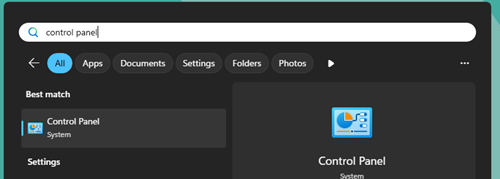
2. Within the Control Panel enter "mail" within the search box and click on "Mail (Microsoft Outlook 32-bit)"

3. Click "Show Profiles"
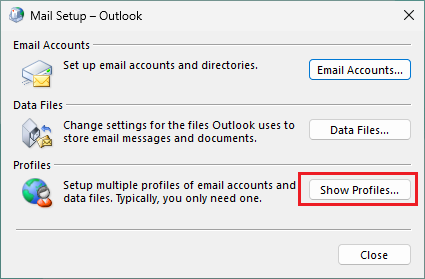
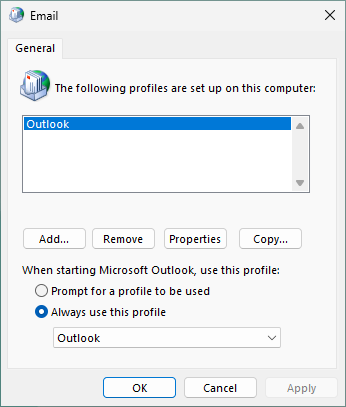
4. Click "Add" and give the profile a name.
5. Select "Manual setup or additional server types"
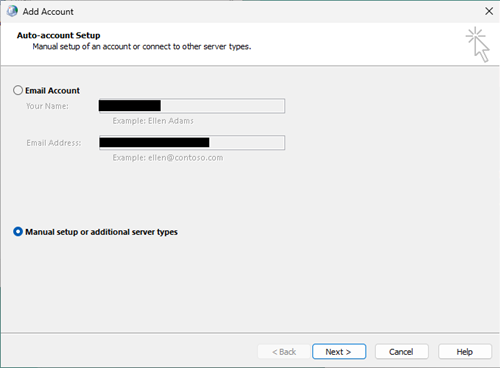
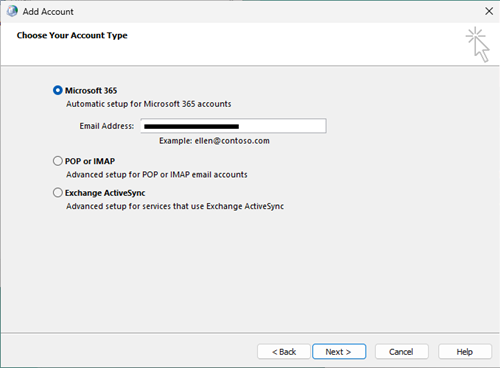
6. Select the Microsoft 365 option and enter the email address of the shared mailbox then click Next
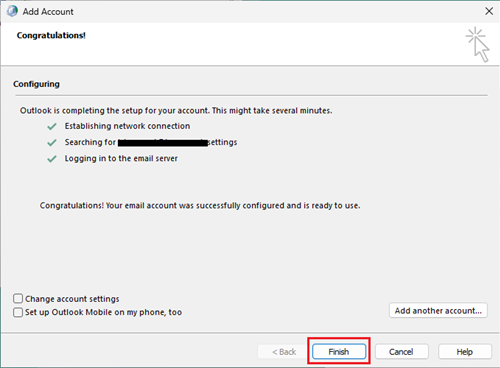
7. Click Finish
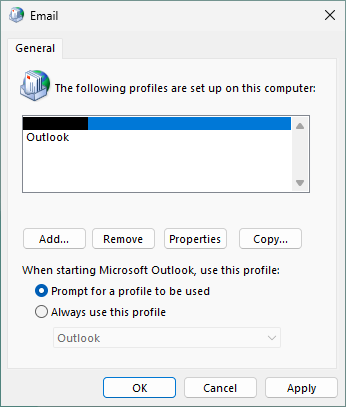
8. Select the option "Prompt for a profile to be used" then click OK
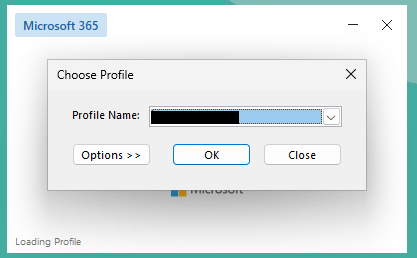
9. Open Microsoft Outlook and select the new profile that you created.
10. On the Home tab go to Rules > Create a rule.

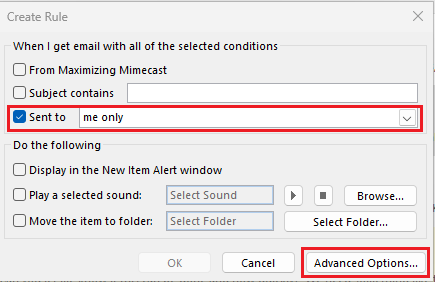
11. In the Create rule dialog box activate Sent to box and choose “me only”. Click Advanced Options then Next
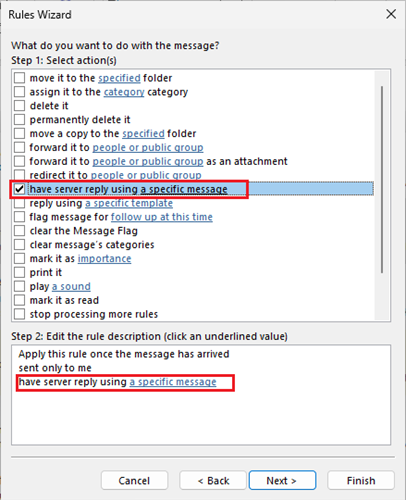
13. Choose the checkbox have server reply using a specific message
14. click on the link specific message. After new message window appear, you can fill the subject and the message fields. Leave the address field blank, it will be filled in later automatically.
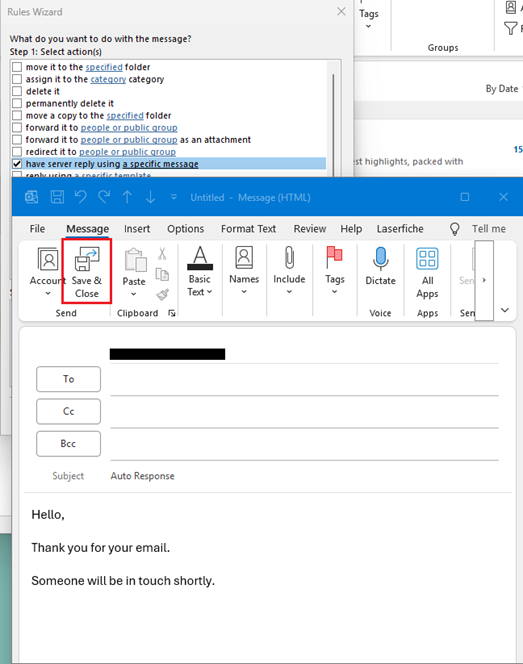
15. Now you can click Next to add more rules, e.g. exceptions or set and activate the rule clicking on Finish .